Subscribe:

FACEBOOK

Labels

MY OTHER BLOGS

ONENETBRAIN

welcome to our webiste

Thursday, 28 February 2013

How to Remove Autorun.inf Virus

Auto run-virus is a kind of viruses that writes itself on a flash drives, memory cards and other external devices and infect user’s computer when the user opens a flash  drive. You can prevent your system from Autorun virus by installing USB Security software's. That will automatically blocks the Autorun.inf files while you insert the flash drive into your system. You can also remove the Autorun.inf virus from system and flash drives by manually using Ms-Dos CMD. 


Steps to Remove Autorun.inf Virus:


  • Click Start--> Run and type cmd then press Enter. 
  • It will open the Command prompt window type cd\ press Enter to enter the C drive
  • Type attrib and press Enter. It will show all system files on the C drive.
  • Check carefully is there any  autorun.inf  file inside ? Before delete the virus we need to disable the Read only of that file.
  • For that type attrib -h -r -s autorun.inf and press Enter then the Read only will be disabled.
  • Now type del autorun.inf then press Enter .It will delete the autorun.inf file.
  • Similarly change the drives to delete autorun.inf file on that drive.
For Drive D:
  • Type C:\Documents and Setting\user>d:>dir d: then press Enter
For Drive E:
  •  Type C:\Documents and Setting\user>e:>dir e: then press Enter
  • Restart the system after delete the virus on each drives.  
Tips and Tricks:
Before you do all above process follow these steps to get more result.
  • Disable the System Restore. ( Control Panel-->System-->System Restore then click on   " turn off system restore on all devices" ).

  • Delete the temporary internet files on your IE browser ( Tools--> Options--> Internet temporary -->delete files then click on "delete all offline content" and click "OK" ).

  • Clean your each hard drives ( Start-->All Programs-->Accessories-->System Tools-->Disk Clean up then "select C drive" click "OK" similarly repeat this for all drives.)

Reset Firefox Browser Setting as to Default

Steps to Reset Firefox :


  • Click the Help menu and select Troubleshooting Information. 


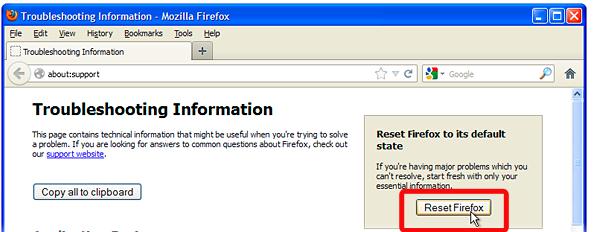
  • Click on Reset Firefox button in the upper-right corner of the Troubleshooting Information page. 


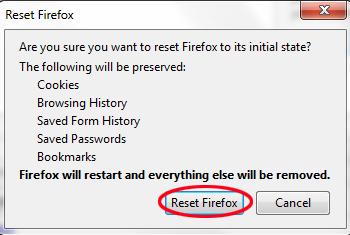
  • It will open a confirmation window  the click Reset Firefox.


  • Then Firefox will close and be reset and Click Finish and Firefox will open. 

Add Fevicon On Blog

Simply upload the file, favicon.ico to the blog or other free uploading websites and get the Link. Make sure your favicon file is named “favicon.ico.” When someone bookmarks your site with a browser that supports favicons, your favicon will appear. Alternatively, you can use this code between the <head></head> (x)HTML tags:
<link rel=”shortcut icon” href=”http://www.thenameofyoursitehere.com/favicon.ico” mce_href=”http://www.thenameofyoursitehere.com/favicon.ico”/>


Some browsers will look for a direct link in the HTML source code to your site's favicon.ico file. You can help these browsers by adding this link in the head section of each page on which you want the Favicon.ico to appear.
Here is the link code to include: <link rel="Shortcut Icon" href="/favicon.ico">
Once you've added this code, upload all of your modified pages.

(Some people suggest that the following is actually more correct: <link rel="icon" href="/favicon.ico" type="image/x-icon"> You can use both if you want!)

If you want to use a GIF or PNG instead, use this format instead (just remember that it won’t work in IE):

<link rel="icon" href="/favicon.png" type="image/png"> or
<link rel="icon" href="/favicon.gif" type="image/gif"> 


Thanks
Enjoy with fevicon

Uninstall Internet Exporer 10 from Windows 8

Most of internet users are browsing through different web browsers like Google chrome , Firefox and Opera etc because of the features on it. Only few peoples are using the  Internet Explorer versions ( ie 8, ie 9 and ie 10) which is pre-installed in Windows Operating systems (windows 8, windows 7, windows xp and later version).


      This post guides you that " how to uninstall internet explorer IE 10 from your computer in  Windows  8". The following guidelines will only removes the executable file of the browser from your computer and it won't affect any other applications depend upon its engine for rendering. Some program files which is associated with the Internet explorer will be shared with another browser (Firefox,Chrome,Opera etc )installed in your computer.

Steps to uninstall the Internet Explorer from Windows:
  • Click " Start "  and Open " Control Panel " .

  • Click on Programs and Features.
  • Click on " Turn Windows features on or off " on the left side


  • It will open  " Windows Features " screen and uncheck the Internet Explorer 10 check box.


  • Now a new confirmation window will open.Click on  Yes to disable Internet explorer.


  • Then Click OK button on Windows Features screen to save the settings. 

  • It will take some time to uninstall it from computer then Restart your computer.
After restart your computer the Internet explorer will no longer be available

Use pdf Files in Blogger

As we all know Blogger doesn't support PDF file to publish in your Blog . If you want to show the pdf content in your blog,what shall you do ? PowerPoint files too facing same problems in your blogger.iframe and other codes will not help us on this particular issue ,.A web tool can helps us to publish PDF file or Powerpoint file in blog.This can be create slideshow and Content at a run.

  • Go to scribd and Create New account.
  • Now Upload your File into scribd.
  • At the Right sidebar, Click on "Embed".And Copy down the HTML5 code.